
🧭 Introduction
Creating a great first impression and intuitive navigation is key to user engagement in chatbot experiences. In Chatify Bot, you can do this by setting up:
- Persistent Menus for ongoing access to important features
- Get Started messages to welcome users
- Ice Breakers to offer frequently asked questions and instant replies
Let’s walk through how each of these works and how to set them up.
📌 Section 1: Persistent Menu
🧾 What Is a Persistent Menu?
A Persistent Menu is a fixed navigation bar inside your Messenger chatbot. It’s always visible to the user, providing quick access to essential actions like support, home, FAQs, or any custom postback/web URL.
It’s called persistent because it remains visible regardless of where the user is in the conversation.
🔧 How to Set Up
1️⃣ Go to:
Facebook Bot Manager → Select Page → Persistent Menu
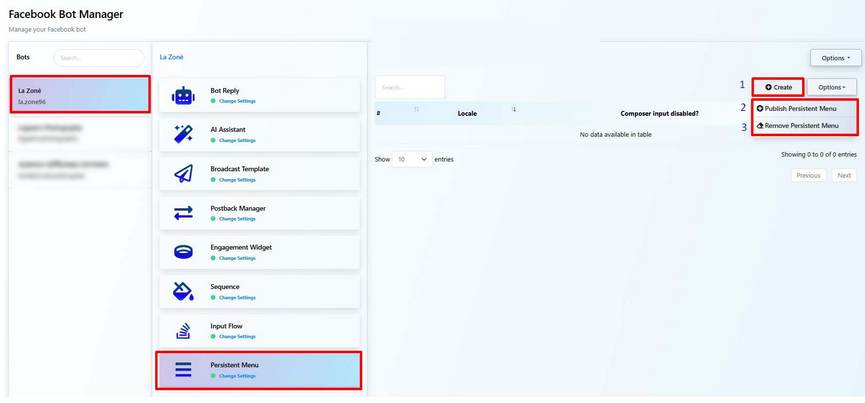
2️⃣ Click Create
You’ll be presented with the Persistent Menu editor.
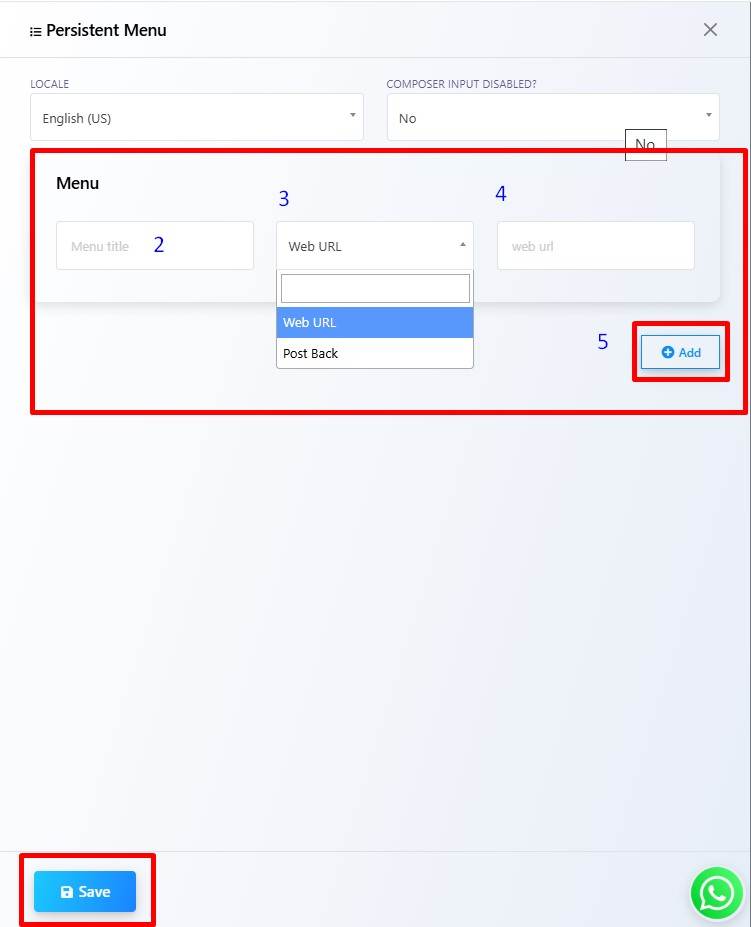
3️⃣ Fill Out Menu Fields:
- Locale: Choose the language (e.g., English US)
- Composer Input Disabled: Choose whether to allow users to type
- Menu Title (e.g., “Help”, “Shop”, “Contact Us”)
- Type: Choose between Web URL or Post Back
- Target: Add the URL or select the postback
4️⃣ Click Add to include more menu items
Repeat as needed.
5️⃣ Click Save to store your menu.
6️⃣ Use Options → Publish Persistent Menu
To make the menu live for all users.
✅ You can also Remove Persistent Menu from the same dropdown.
👋 Section 2: Get Started Settings
The Get Started button is the first interaction users see
when opening your Messenger bot. It’s your chance to say hello and introduce your service.
🔧 How to Set Up
1️⃣ Go to:
Facebook Bot Manager → Select Page → Get Started Settings
2️⃣ Enable the Get Started Status
3️⃣ Add your Welcome Message
Example:
vbnet
CopyEdit
Welcome to Chatify Bot! Let us know how we can help you out today.
✅ You can optionally insert First Name and Last Name variables for personalization.
❄️ Section 3: Ice Breakers (FAQs)
Ice Breakers are clickable questions users can select when first interacting with the bot. This helps reduce friction and guides them to the right flow.
🔧 How to Set Up
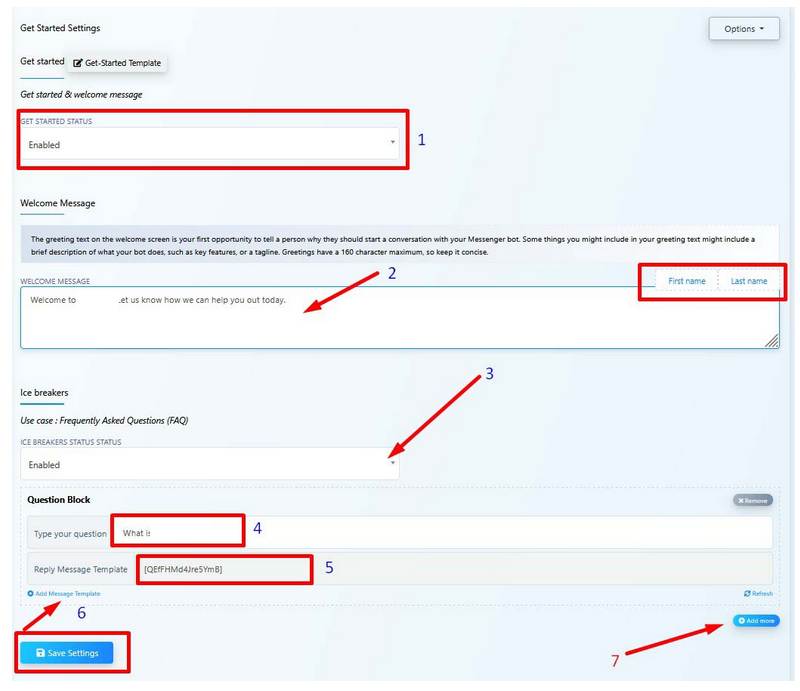
1️⃣ Enable Get Started Setting
Go to the Facebook Bot Manager, select your desired page, and open Get Started Settings.
From the dropdown labeled Get Started Status, select Enabled.
2️⃣ Enter a Welcome Message
In the Welcome Message field, type a short, friendly introduction.
Example:
Welcome to Chatify Bot! Let us know how we can help you out today.
👉 You can also insert personalization tags like {{First Name}} or {{Last Name}}.
3️⃣ Enable Ice Breaker Status
Scroll down to the Ice Breakers section and make sure the Ice Breakers Status is set to Enabled.
4️⃣ Type a Question
In the Question Block, type a frequently asked question (FAQ) that users are likely to click on.
Example:
What is Chatify Bot?
5️⃣ Add a Template Message
Link the question to a Reply Message Template by selecting one from the dropdown. This will be the bot’s response when the user clicks that FAQ.
6️⃣ Add More Template Messages (Optional)
If your answer requires multiple reply templates, you can click “Add Message Template” to attach more templates under the same question.
7️⃣ Add More FAQs (Optional)
Click “Add More” to create additional question blocks. You can add as many as you need to cover key user queries.
✅ After completing these steps, don’t forget to click “Save Settings” to apply the changes.
📋 Summary Table
| Feature | Purpose | Key Actions |
| Persistent Menu | Always-visible navigation for users | Create → Add Items → Publish/Remove |
| Get Started | Welcome message on first interaction | Enable → Customize message → Save |
| Ice Breakers | FAQ prompts for user to click and explore | Enable → Add Q&A blocks → Link templates |
❓ FAQs
Can I use both persistent menu and Get Started button together?
Yes, they work independently but complement each other well for better UX.
Can I assign flows or templates in the persistent menu?
Yes, choose “Post Back” as the type and link it to any bot flow.
How many menu items can I add in the persistent menu?
You can add up to 3 menu items per locale.
Are Ice Breakers only for new users?
Yes, they appear only on the first interaction or after deleting the chat history.
Can I include dynamic variables in the Get Started message?
Yes, you can use {{first_name}} or {{last_name}} tags.
🏁 Conclusion
With Persistent Menus, Get Started greetings, and Ice Breakers, Chatify Bot equips you to deliver a smooth, user-friendly Messenger experience. These settings not only enhance navigation and support but also help you set the right tone from the very beginning of the conversation.
🧭 Start right. Navigate smart. Convert better.