
- Introduction
WhatsApp message templates are essential for businesses looking to reach customers outside of the traditional 24-hour window. In this post, we’ll show you how to create a WhatsApp message template straight within the Chatify Bot platform, streamlining your messaging approach. Templates enable media-rich, structured communications, making them effective tools for communicating notifications, confirmations, and reminders.
- Procedure
Let’s see how we can do it. From the Chatify Bot’s interface, select “Bot Manager” on your account.
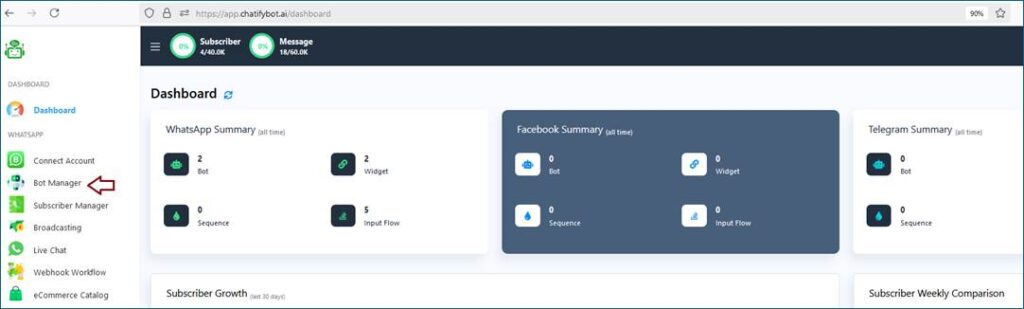
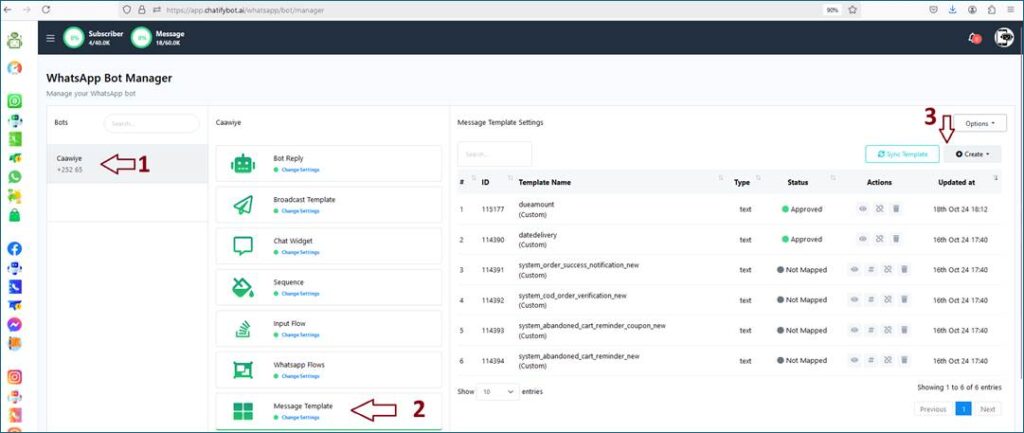
- Click on the Create button -> choose “General template” fill out the message template form.
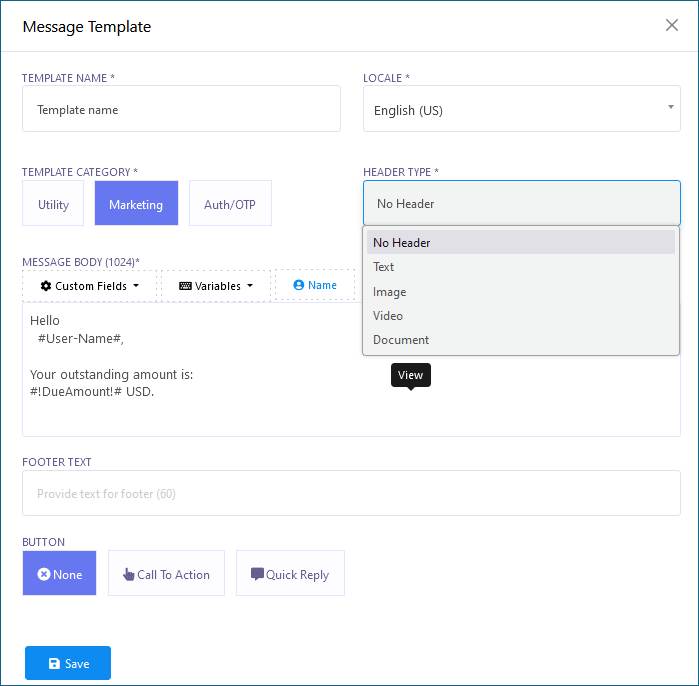
- Provide a name in the template name field ->
- Select template category
- write a message in the message body.
- Insert the template variable in the message body if needed.
- Write a Footer text in the Footer text field. It is not required, optional.
- If you need to add quick reply, select the Quick Reply option. This is optional
- Write button text in the Button text field.
- Click on the save button.
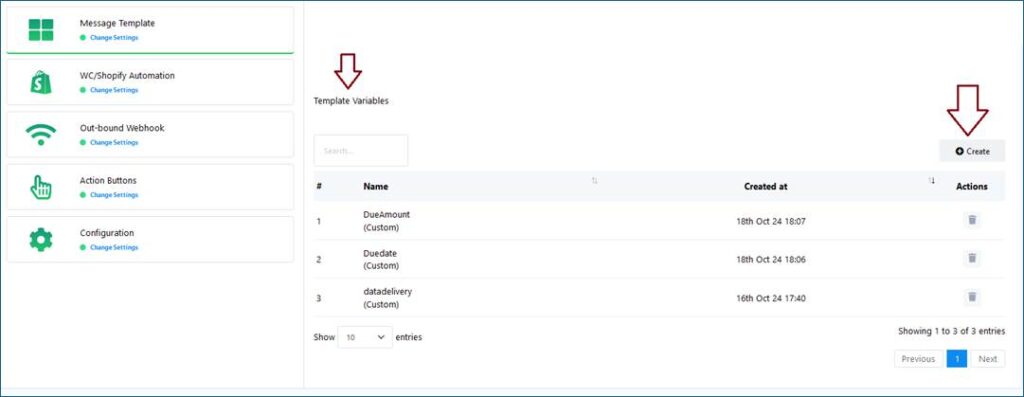
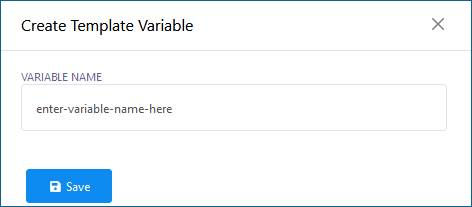
If you want to create template variables, follow the following steps.
Before using the message template, you must check if the status of the message template is approved. You can use the message template, when the status of the message template is approved.
This message template can be used for broadcasting, live chat, and any integrated message like Shopify and WooCommerce.